Hex Analyzer & Patcher Pro
A desktop tool for comparing binary files, reviewing differences and conflicts, exporting/importing patches, and applying changes safely to target files.
1234Developed by MKhanfar
Table of contents
1) Installation & running
Windows
- Download the installer or EXE package.
- Run the application.
- If Windows SmartScreen appears, select More info → Run anyway (only if you trust the source).
macOS / Linux
If you provide a packaged build for macOS or Linux, the steps are the same: download → run.
2) Understanding the interface
| Area | What it does |
|---|---|
| File Selection | Choose Original, Modified, and optionally Target binaries. |
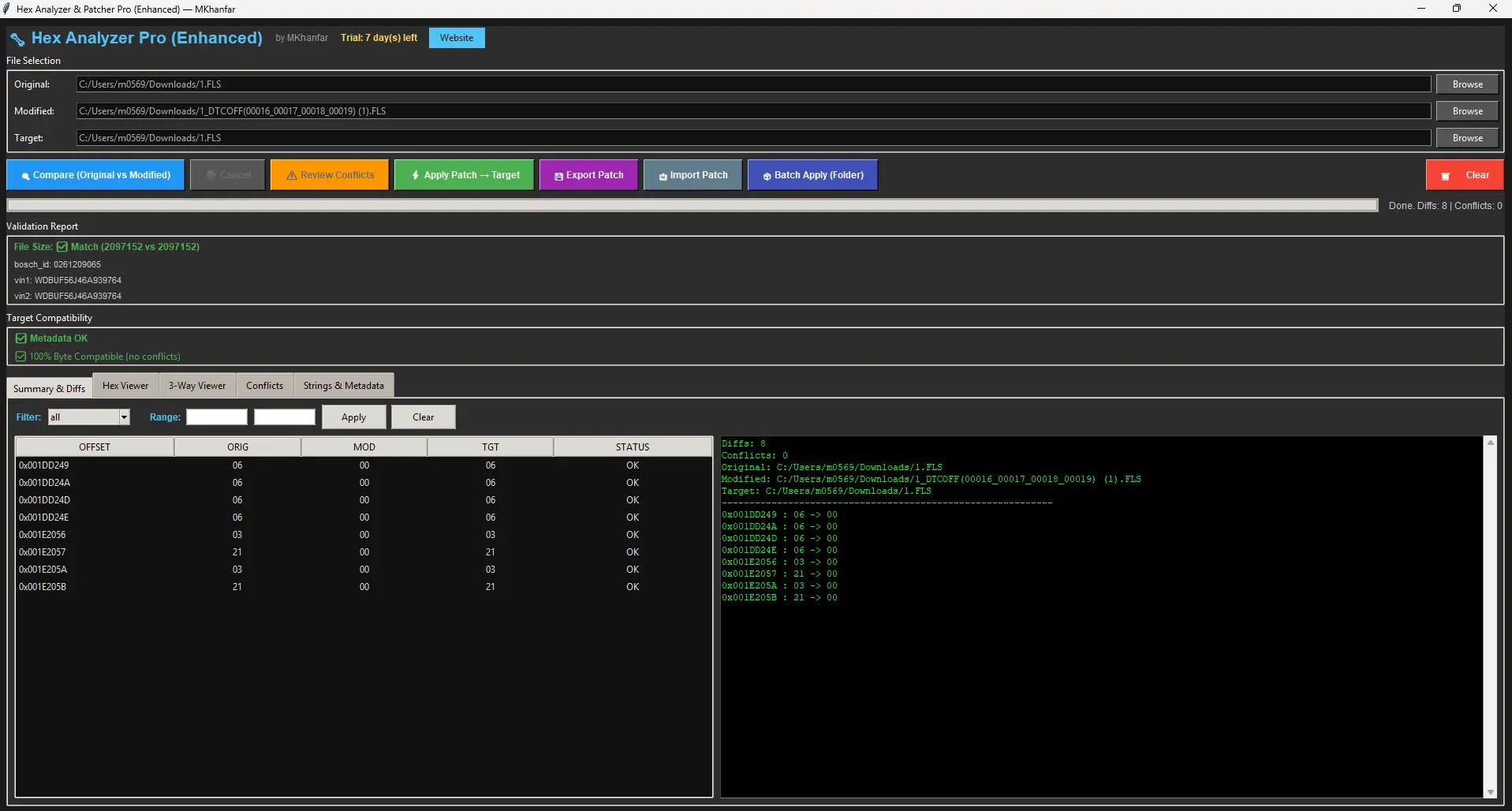
| Compare | Computes differences between Original and Modified, and checks conflicts against Target if loaded. |
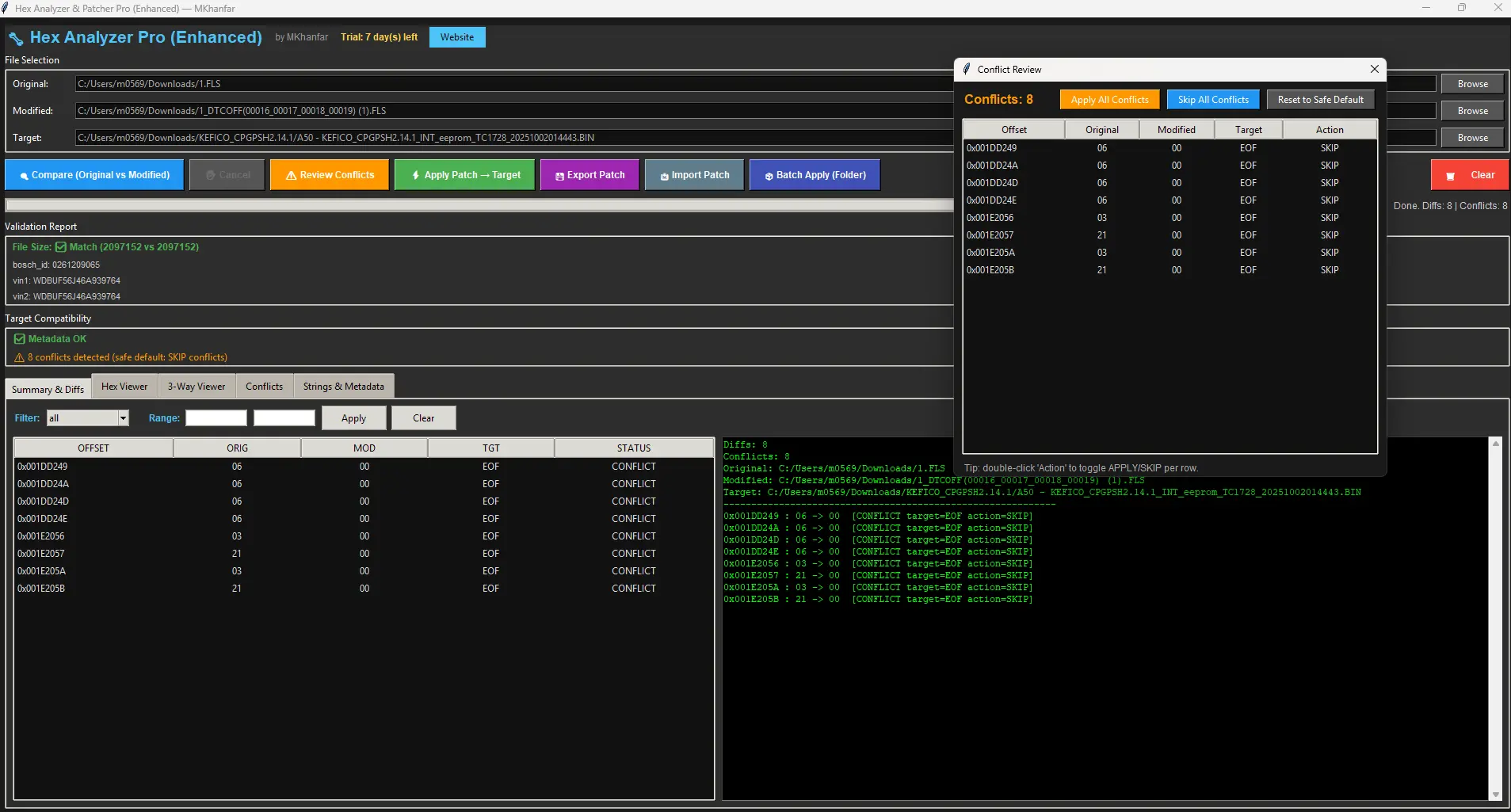
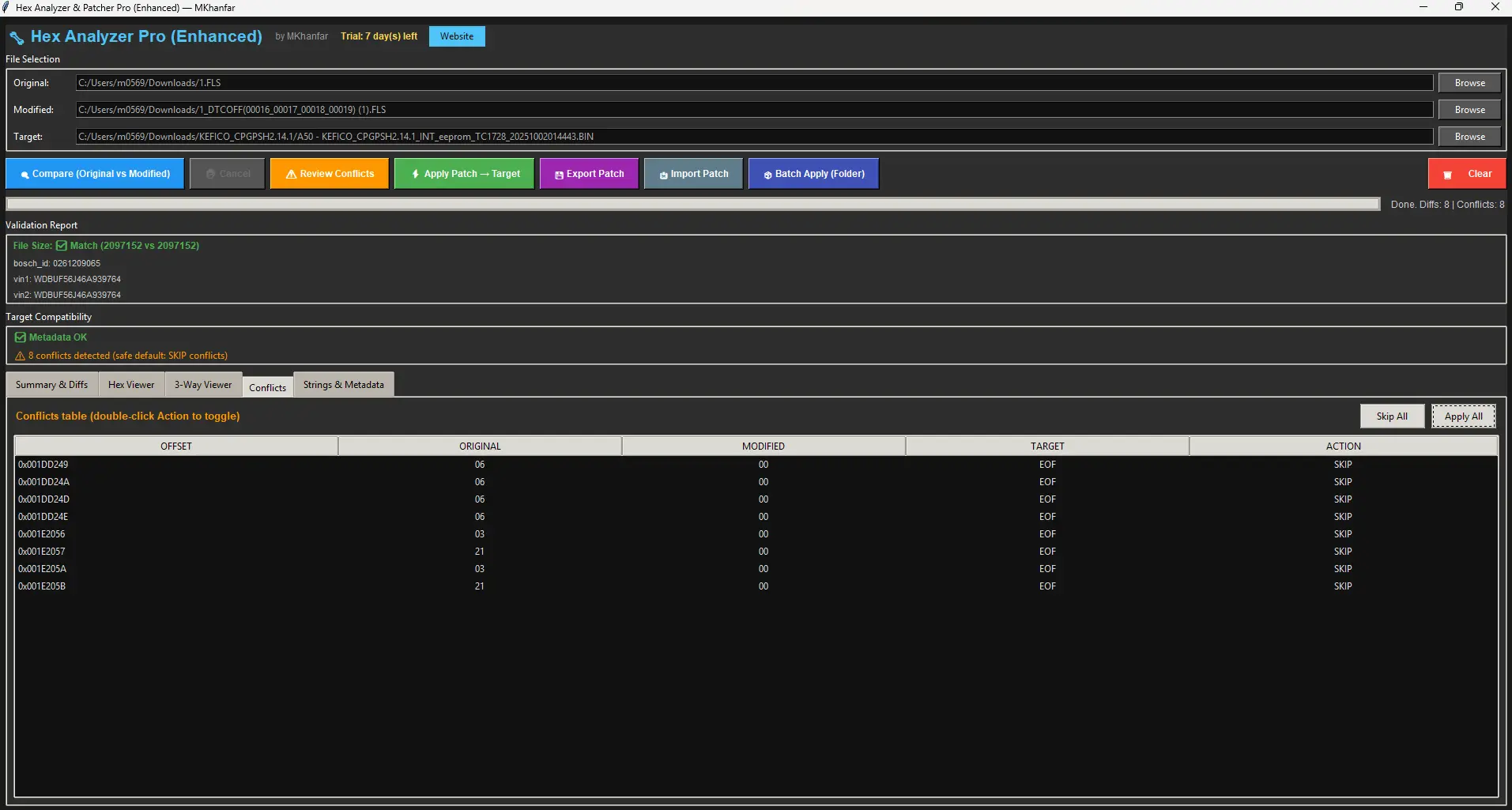
| Review Conflicts | Opens a per-conflict decision table (toggle APPLY/SKIP per offset). |
| Apply Patch → Target | Saves an output file with your approved changes applied to Target (Save As). |
| Export / Import Patch | Export diffs to shareable patch files (JSON/CSV). Import JSON patches later. |
| Batch Apply | Apply patch to every file in a folder and generate a CSV report. |
| Tabs |
|
3) Quick start (recommended workflow)
Step 1 — Load files
- Click Browse on Original and select your baseline file.
- Click Browse on Modified and select the edited file.
- (Optional) Click Browse on Target to patch a third file.
Step 2 — Compare
- Click Compare.
- Watch the progress bar.
- If needed, click Cancel.
Step 3 — Review
- Open Summary & Diffs to browse all changes.
- If conflicts exist, click Review Conflicts.
- Toggle conflict actions:
APPLYorSKIP.
Step 4 — Apply
- Click Apply Patch → Target.
- Choose an output file with Save As.
- Review the summary (applied/skipped/conflicts).
4) Core workflows (deep guide)
Workflow A — Compare Original vs Modified
- Load Original and Modified.
- Click Compare.
- Review:
- Diff count: total number of changed offsets.
- Conflict count: if Target is loaded, offsets that don’t match expected Original.
Workflow B — Review conflicts
If conflicts exist, the tool assumes SKIP per conflict (safe). You can approve them one by one.
| Action | Meaning | When to use |
|---|---|---|
| APPLY | Apply the modified byte even though Target differs. | When you are sure this offset must change and Target differences are acceptable. |
| SKIP | Do not change this offset in the output. | When compatibility is uncertain or Target is known to be different/unsupported. |
Workflow C — Apply patch to Target
- Load Target.
- Click Apply Patch → Target.
- Choose output file name with Save As.
- Read the result summary: applied, skipped, conflicts applied, conflicts skipped.
Workflow D — Export a patch (shareable file)
Exporting a patch lets you share changes without sending full binary files (when allowed).
- After compare, click Export Patch.
- Choose:
- JSON (recommended): includes metadata + machine readable.
- CSV: easy to inspect in Excel.
Workflow E — Import a patch (no Modified file required)
- Click Import Patch and select a patch JSON file.
- Load a Target (optional but recommended).
- Review conflicts and apply.
5) Hex viewer & 3-way viewer
Hex Viewer (single view)
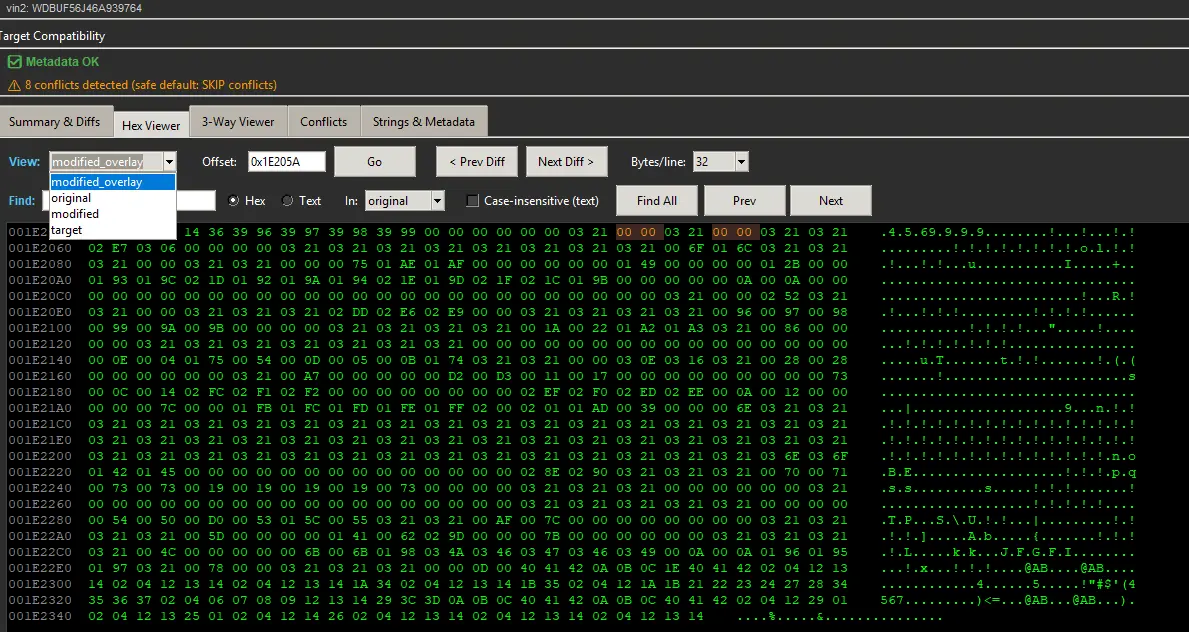
The Hex Viewer shows bytes with highlighting for changed bytes and conflicts.
| View mode | What you see | Why it’s useful |
|---|---|---|
| modified_overlay default | Original data, but at diff offsets it displays the Modified byte. | Great for “what the patched file would look like”. |
| original | Original file as-is. | Confirm baseline values at offsets. |
| modified | Modified file as-is. | Confirm edited values and context. |
| target | Target file as-is. | Check real target bytes at conflict locations. |
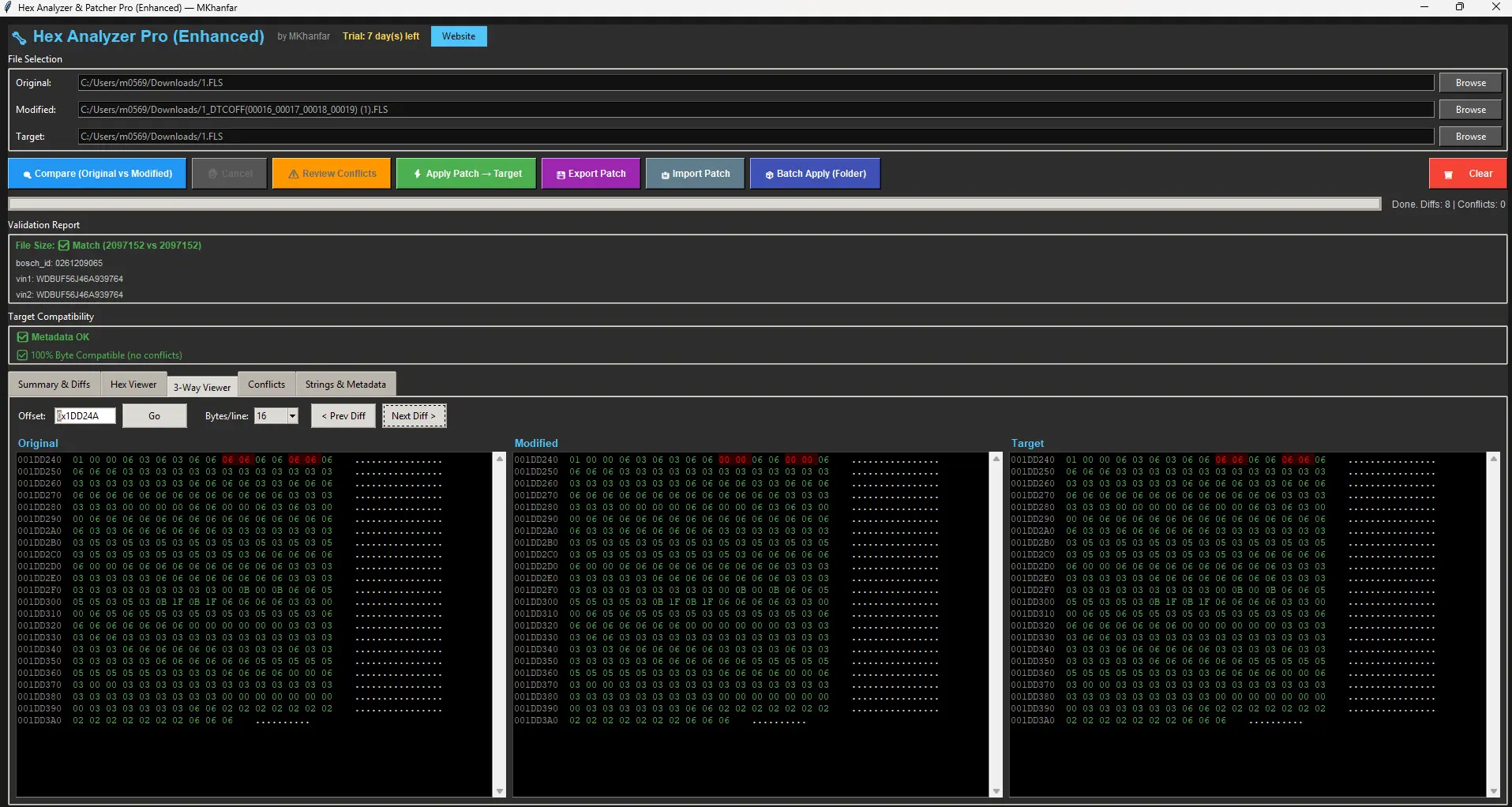
3-Way Viewer (side-by-side)
This view shows Original, Modified, and Target side-by-side at the same offsets. It is the fastest way to understand why conflicts happen.
6) Search (Hex / Text)
Search in different buffers
Use the In: dropdown to choose where to search:
- original — searches the Original file
- modified — searches the Modified file
- target — searches the Target file
- view — searches the overlay view when safe (may be limited for very large files)
Hex search
Hex search supports two input styles:
- Spaced bytes like
DE AD BE EF - Continuous hex like
DEADBEEF
Wildcards are supported using ?? to match any byte:
AA ?? FF
10 20 ?? ?? 33
Text search
Text search uses UTF-8 best-effort. You can enable case-insensitive for text searches.
Search results navigation
- Click Find All to list matches
- Use Prev / Next to jump through matches
- Matches are highlighted in the viewer
7) Patch export/import (formats)
JSON patch (recommended)
The JSON patch is designed for automation and verification.
{
  "format": "mkpatch/v1",
  "created_unix": 1730000000,
  "meta": {
    "original_path": "...",
    "modified_path": "...",
    "original_size": "1048576",
    "modified_size": "1048576",
    "original_sha256": "...",
    "modified_sha256": "..."
  },
  "diffs": [
    { "offset": 4096, "original": 171, "modified": 172 },
    { "offset": 4097, "original": 1, "modified": 0 }
  ]
}CSV patch
CSV is great for human inspection in spreadsheet tools:
offset_hex,offset_dec,original_hex,modified_hex,original_dec,modified_dec
0x1000,4096,AB,AC,171,1728) Batch apply (folder mode)
Batch mode is designed for applying the same patch to many target files quickly.
- Compare or import a patch (so diffs exist).
- Click Batch Apply (Folder).
- Select the input folder containing target files.
- Select an output folder.
- Choose whether to override conflicts in batch mode.
batch_report.csv with results.
| Column | Description |
|---|---|
input_file | Original file name processed. |
status | OK or FAIL with error details. |
applied | Number of applied offsets. |
skipped | Number of skipped offsets. |
conflicts_applied | Number of conflicts forced/applied. |
conflicts_skipped | Number of conflicts skipped due to safety or action choice. |
output_path | Where the patched file was saved. |
9) Strings, metadata, and hashes
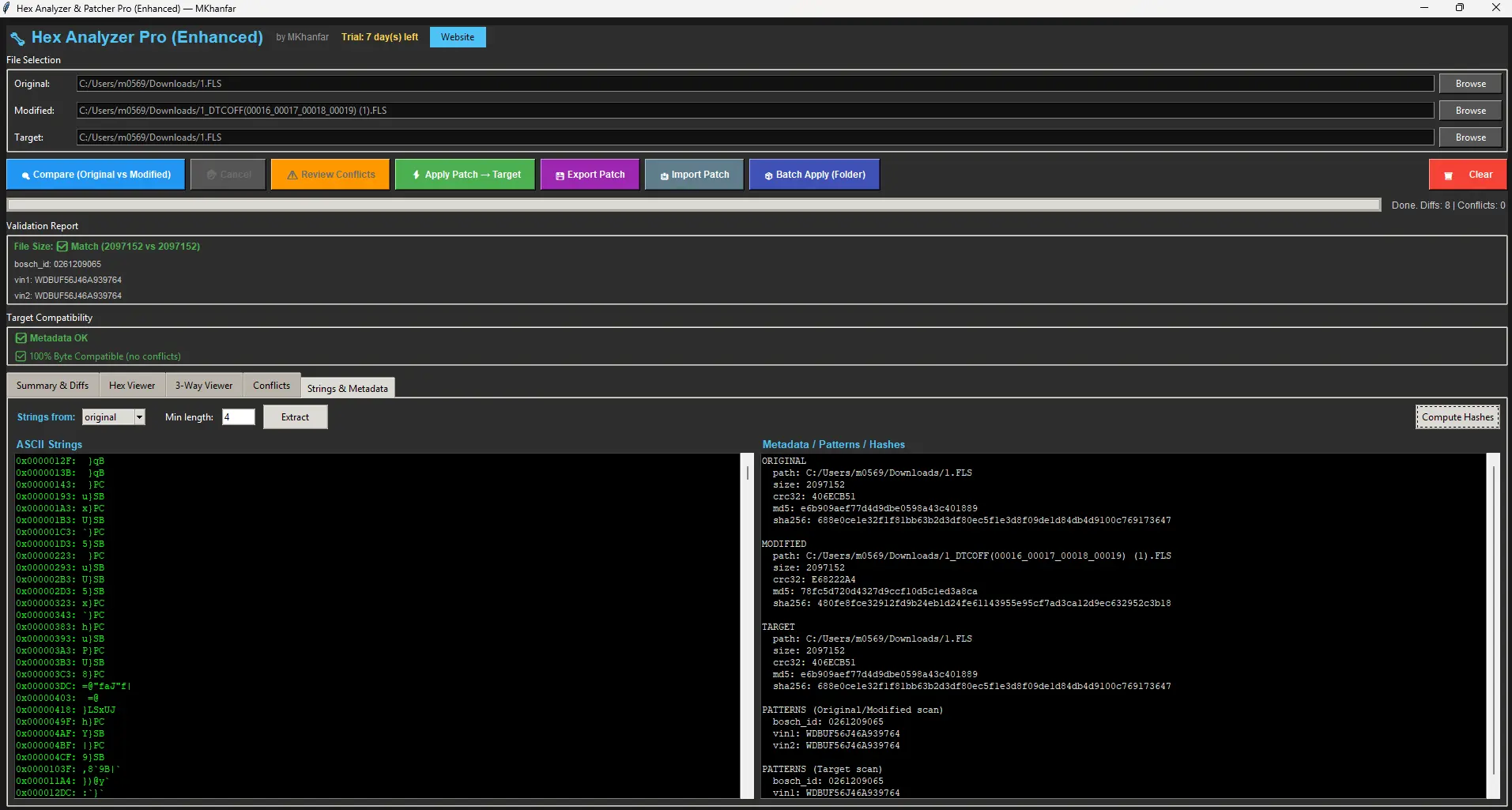
Strings extraction
Use this to quickly discover readable labels embedded in the file (ASCII strings).
- Select the source: Original, Modified, or Target
- Choose minimum length (e.g., 4–8)
- Click Extract
Hashes
Hashes help you verify file identity and integrity:
- CRC32 — quick check
- MD5 — legacy hash used in many workflows
- SHA256 — strong modern hash for verification
Metadata / patterns
The app attempts to extract common identifiers (best-effort). This is a convenience feature to help you spot mismatches early.
10) Safety & best practices
Recommended safety checklist
- Backup Original and Target files before making changes.
- Compare file sizes and (if applicable) key identifiers.
- Review conflicts. Default SKIP is safer than force applying.
- Apply patch into a new output file (Save As).
- Verify output using hashes and, where relevant, known validation tools.
Understanding conflicts
Conflicts usually mean one of the following:
- Target is from a different variant/version.
- Target has already been modified.
- Patch is not compatible across regions/hardware revisions.
- You are applying changes to the wrong base file.
11) Troubleshooting & FAQ
The app is slow or freezes on big files
Large binaries can take time to scan. The app uses chunked compare and can cancel. If you still see slowness, close other apps and try again.
I get many conflicts — is that normal?
Many conflicts usually mean the patch does not match the target’s base. This is a signal to stop and verify: correct target, correct original base, correct version/variant.
Why can’t I import CSV patches?
CSV export is designed for inspection. JSON import is supported because it preserves structure, types, and metadata.
My output file doesn’t work
Common causes:
- Applied patch to the wrong target version.
- Forced conflicts incorrectly (“Override all”).
- Binary requires recalculating checksums after changes.
FAQ
| Question | Answer |
|---|---|
| Can I patch without the Modified file? | Yes. Export a JSON patch once, then import it later and apply to targets. |
| Can I apply only some diffs? | Use the diff table filters and conflict actions. For advanced selective apply, extend the tool to add “Apply selected diffs”. |
| What files does batch mode process? | It prioritizes common binary extensions (.bin, .hex, .rom, .img), then falls back to all files if none match. |
12) Screenshots (click to enlarge)
Place your images in a folder named pic next to this HTML file with names:
20.webp, 21.webp, 22.webp, 23.webp, 24.webp, 25.webp.
2-Day Free Trial & Pricing
Try Hex Analyzer & Patcher Pro free for 2 days with access to many professional features. After the trial, purchase a lifetime license for $60 with premium support and updates included.
Includes premium support, free updates, and priority feature requests
1234Lifetime License ($60): Permanent access, premium email support, free updates, priority feature requests, and commercial use rights.
13) Contact us
| Topic | How to contact |
|---|---|
| Bug reports | Email with: app version, steps to reproduce, and screenshots if possible. |
| Feature requests | Email with: your workflow, file sizes, and what you want automated. |
| Commercial licensing | Email to discuss licensing model, deployment, and branding. |